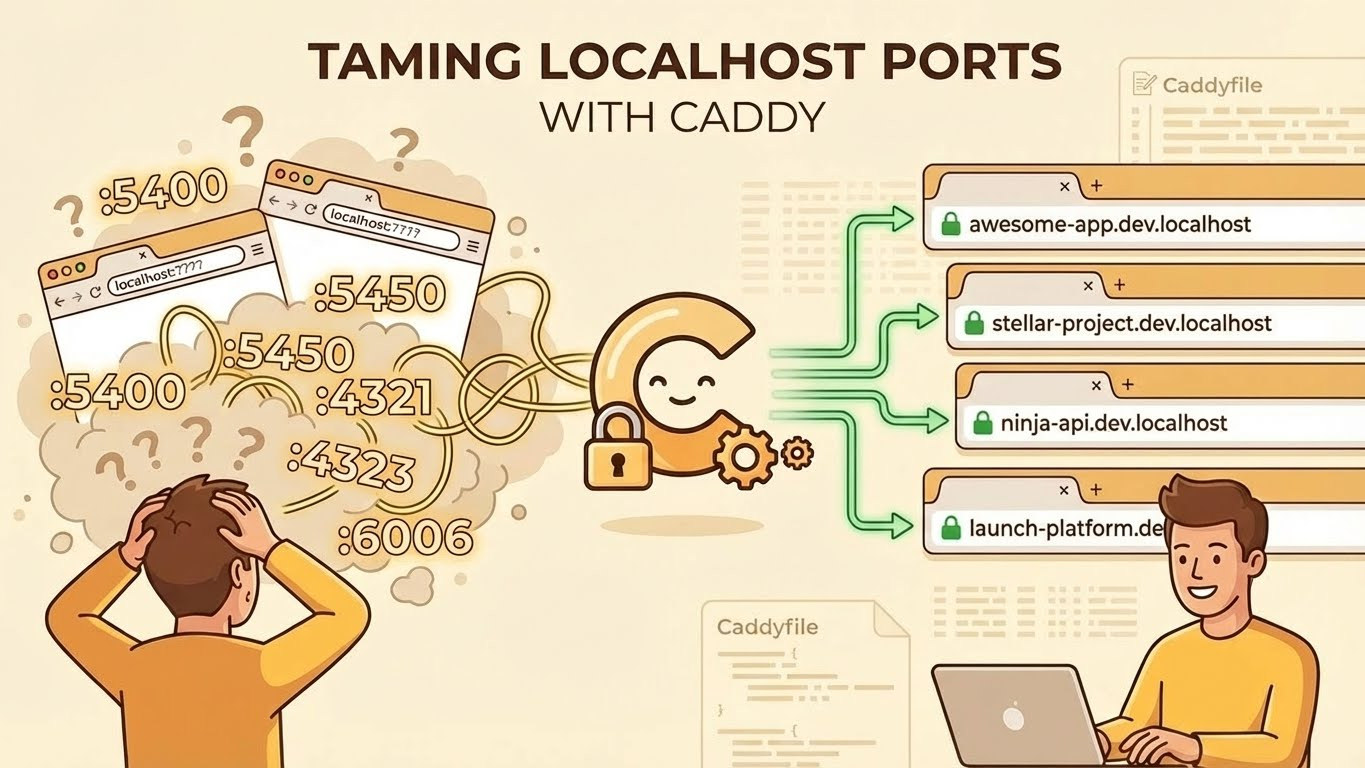
Taming Localhost Ports with Caddy: Never Remember a Port Number Again
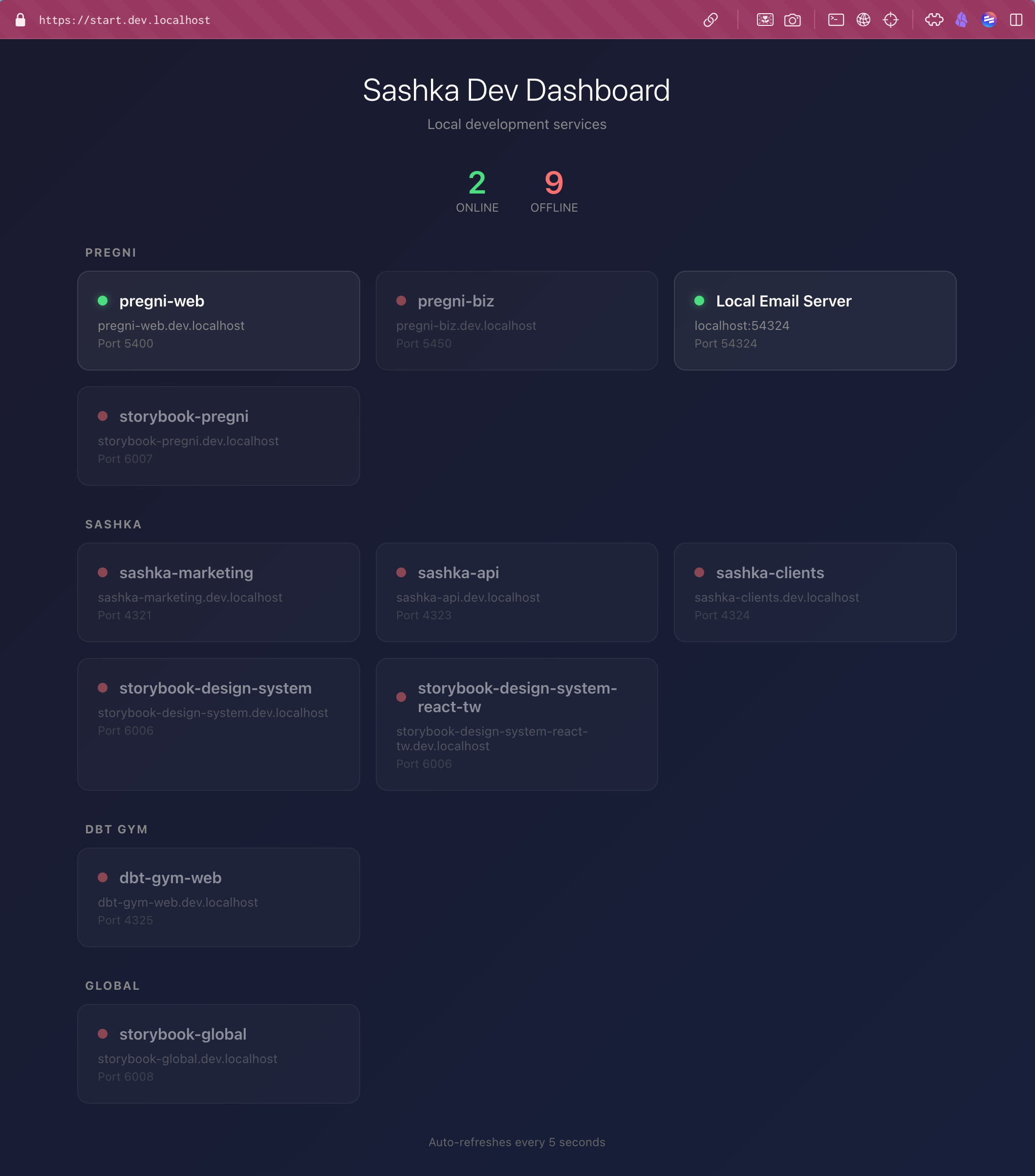 The end result: a simple dashboard with everything bundled up - I can see what’s running and what’s not at a glance.
If you work on multiple projects—especially in a monorepo—you know the pain. “Was Pregni on 5400 or 5450? Is the marketing site 4321 or 4322? Wait, which one is the API?”
I got tired of checking package.json files and running mental port arithmetic. So I fixed it with Caddy and wildcard localhost domains.
Now I just type pregni-web.dev.localhost and I’m there. No port numbers. No guessing.
The Problem: Port Number Hell
Here’s a typical day in my monorepo:
localhost:5400- Pregni web applocalhost:5450- Pregni business portallocalhost:4321- Sashka marketing sitelocalhost:4323- Sashka APIlocalhost:6006- Storybook… which one?
Five projects, five ports, and zero chance I’ll remember which is which. Every time I switch contexts, I’m hunting through configs or trying random ports.
The Solution: Caddy + *.dev.localhost
Caddy is a modern web server with automatic HTTPS and dead-simple configuration. Its killer feature for local development: you can get HTTPS with trusted certificates using a wildcard subdomain.
Here’s the entire setup:
*.dev.localhost {
    tls internal

    @pregni-web host pregni-web.dev.localhost
    handle @pregni-web {
        reverse_proxy localhost:5400
    }

    @pregni-biz host pregni-biz.dev.localhost
    handle @pregni-biz {
        reverse_proxy localhost:5450
    }

    @sashka-marketing host sashka-marketing.dev.localhost
    handle @sashka-marketing {
        reverse_proxy localhost:4321
    }

    @sashka-api host sashka-api.dev.localhost
    handle @sashka-api {
        reverse_proxy localhost:4323
    }

    handle {
        respond "App not configured in Caddyfile" 404
    }
}
That’s it. Now:
https://pregni-web.dev.localhost→ Pregni web apphttps://pregni-biz.dev.localhost→ Pregni business portalhttps://sashka-marketing.dev.localhost→ Sashka marketing sitehttps://sashka-api.dev.localhost→ Sashka API
No ports to remember. Real HTTPS. Green padlock. Just names that make sense.
How It Works
1. The .localhost TLD
Browsers automatically resolve .localhost (and its subdomains) to 127.0.0.1. No /etc/hosts editing required. This is baked into the browser spec.
2. tls internal
This tells Caddy to generate its own certificates instead of trying Let’s Encrypt (which can’t reach your local machine). After running caddy trust, your browser accepts these certs with a green padlock.
3. The Wildcard Trick: *.dev.localhost
Here’s the key insight that took me several failed attempts to discover:
*.localhost→ Doesn’t work. Browsers reject wildcard TLS certs for the.localhostTLD itself.*.dev.localhost→ Works perfectly. Adding a subdomain level (dev) makes browsers accept the wildcard cert.
This means you only need to update the Caddyfile when adding new apps—no need to update a domain list or regenerate certificates.
4. Named Matchers
Each @name host subdomain.dev.localhost creates a named matcher. Caddy checks incoming requests against these matchers in order.
5. Reverse Proxy
When a matcher hits, reverse_proxy localhost:PORT forwards the request to your actual dev server. Your app doesn’t know or care—it just sees normal traffic.
6. Fallback Handler
The final handle block catches anything that doesn’t match. Instead of a confusing connection refused, you get a clear “App not configured” message.
Setting It Up
Step 1: Install Caddy
# macOS
brew install caddy

# Linux
sudo apt install caddy

# Or download from https://caddyserver.com/download
Step 2: Trust Caddy’s CA
This is the key step most tutorials skip. Run once:
caddy trustThis installs Caddy’s root CA into your system trust store. Now browsers will trust the internal certificates Caddy generates.
Step 3: Create Your Caddyfile
Create a Caddyfile in your project root:
*.dev.localhost {
    tls internal

    @your-app host your-app.dev.localhost
    handle @your-app {
        reverse_proxy localhost:YOUR_PORT
    }

    @another-app host another-app.dev.localhost
    handle @another-app {
        reverse_proxy localhost:ANOTHER_PORT
    }

    handle {
        respond "App not configured in Caddyfile" 404
    }
}
Step 4: Run Caddy
Caddy needs sudo for port 443 (HTTPS):
sudo caddy start --config CaddyfileTo reload after config changes:
sudo caddy reload --config CaddyfileStep 5: Start Your Dev Servers
Start your apps on their usual ports. Caddy handles the routing.
# Terminal 1
moon pregni-web:dev  # Runs on :5400

# Terminal 2
moon sashka-marketing:dev  # Runs on :4321
Now open https://pregni-web.dev.localhost or https://sashka-marketing.dev.localhost in your browser. Green padlock included.
Why This Beats Alternatives
vs. Editing /etc/hosts
- No sudo required for adding apps
- No manual IP mappings
- True wildcard support
- Easy to add new projects (just add a handler block)
vs. Browser Bookmarks with Ports
- URLs are shareable and memorable
- Works in terminal tools (curl, httpie)
- Matches production URL patterns
- No mental translation needed
vs. Docker/Traefik
- Zero container overhead
- Works with any dev server
- Simpler configuration
- Faster startup
Pro Tips
Naming Convention
Use consistent, predictable names:
# Pattern: {project}-{app}.dev.localhost
@pregni-web host pregni-web.dev.localhost
@pregni-biz host pregni-biz.dev.localhost
@pregni-api host pregni-api.dev.localhost
Adding New Apps
When you add a new app, just add a handler block and reload:
sudo caddy reload --config CaddyfileNo need to update a domain list or restart—the wildcard cert already covers it.
If Certs Stop Working
Sometimes after system updates, the CA trust breaks:
caddy untrust && caddy trustThen reload Caddy.
API Routes
Works great for APIs too. Your frontend can call https://sashka-api.dev.localhost instead of http://localhost:4323—which also solves mixed-content issues if your frontend is on HTTPS.
What Didn’t Work (So You Don’t Have To Try)
Before landing on this solution, I tried several approaches that failed:
Wildcard *.localhost: Browsers reject wildcard TLS certs for the .localhost TLD directly. You get ERR_CERT_COMMON_NAME_INVALID.
Explicit domain list: Works (pregni-web.localhost, pregni-biz.localhost {...}), but you have to update the list and reload for every new app. More friction.
Let’s Encrypt for local domains: ACME challenges can’t reach 127.0.0.1 from the internet. Even pointing a real domain to 127.0.0.1 doesn’t help.
HTTP only: Works, but no green padlock, and you get mixed-content issues when your frontend is HTTPS in production.
The key insight: add a subdomain level. *.dev.localhost works where *.localhost doesn’t.
Bonus: A Dev Dashboard
Once I had all these apps behind nice URLs, I realized I still had one problem: which apps are actually running right now?
So I built a simple dashboard at https://start.dev.localhost:
- Green dot = app is running
- Red dot = app is offline
- Auto-refreshes every 5 seconds
- Click any app to open it
The dashboard is just a static HTML file that Caddy serves. It checks each port directly via fetch('http://localhost:PORT') to detect if something is listening—this avoids CORS issues that would occur if checking via the Caddy URLs.
Now start.dev.localhost is my browser homepage for development. One glance tells me what’s running.
Solving the OAuth Whitelist Problem
Here’s another pain point this setup solves: OAuth providers and third-party services that need callback URLs whitelisted.
The problem:
- Google OAuth requires HTTPS for redirect URIs (except
localhost, but inconsistently) - Supabase Auth needs whitelisted redirect URLs per environment
- Some services reject
localhost:PORTentirely - You end up with different callback URLs for dev vs staging vs prod
- Or you reach for ngrok, which adds latency and is yet another tool to manage
With Caddy, your callback URLs look like production:
https://myapp.dev.localhost/auth/callbackInstead of:
http://localhost:3000/auth/callbackOne URL pattern across environments. Whitelist *.dev.localhost once in your OAuth provider, and every new app just works. No more per-app, per-port configuration.
This also means your auth code doesn’t need environment-specific URL logic. The same redirect URI works locally and in production—just swap dev.localhost for your real domain.
My Current Setup
Here’s what I’m running in my monorepo:
| App | URL | Port |
|---|---|---|
| Dashboard | https://start.dev.localhost | - |
| Pregni | ||
| pregni-web | https://pregni-web.dev.localhost | 5400 |
| pregni-biz | https://pregni-biz.dev.localhost | 5450 |
| storybook-pregni | https://storybook-pregni.dev.localhost | 6007 |
| Sashka | ||
| sashka-marketing | https://sashka-marketing.dev.localhost | 4321 |
| sashka-api | https://sashka-api.dev.localhost | 4323 |
| sashka-clients | https://sashka-clients.dev.localhost | 4324 |
| storybook-design-system | https://storybook-design-system.dev.localhost | 6006 |
Eight apps, one Caddyfile, one dashboard, zero ports to remember.
The Result
Before:
- “What port is Pregni again?”
- opens 5 browser tabs with different ports
- checks package.json for the 10th time
- Mixed-content warnings when API is HTTP and frontend is HTTPS
After:
- Type
pregni-web.dev.localhost - Green padlock
- Done
It’s a small thing, but it removes friction from context switching. And in a monorepo with many apps, that friction adds up.
The best developer experience improvements are the ones you stop thinking about. Caddy with local HTTPS is one of those—set it up once, never think about ports again.